How to Automate a Stick Figure YouTube Channel


Stick figure YouTube automation has become one of the most talked-about ideas among faceless creators. Spend a while on YouTube and you’ll see why: channel after channel of round-headed characters explaining history and strange “what if” scenarios, some of them posting several times a week without a face on camera or a drawing tablet in sight. The appeal is easy to understand. A stickman video is simple enough that software can now write it, draw it, voice it and upload it, and plenty of guides promise a channel that runs while you sleep. The catch is that the same shortcut is open to everyone. YouTube has seen many channels post near-identical videos, and it now says plainly which kinds it won’t pay for. What separates a channel worth watching from the flood is usually a person who still decides what the videos are about. This guide covers how to automate a stick figure channel without giving that up, from the first topic list to the weekly upload.
Create viral faceless shorts in minutes
Pick a niche, customize the style and let AI write, voice and publish your videos on autopilot.
Key takeaways
- Automate production: script drafts, scene drawings, voiceover, captions, titles and posting. Keep the topic list and the final check for yourself.
- YouTube reviews the whole channel before it pays. Its inauthentic content policy names “AI-generated content made with generic or unoriginal templates” and characters stuck in the same situation with the same outcome.
- A series with recurring characters is allowed when each episode has its own storyline, focus or concept. That’s the bar every automated episode has to clear.
- Write the topic list before you start. It’s the one input that decides whether 50 episodes feel like a channel or like one video made 50 times.
- Post weekly to start. A weekly ShortsCrafter series prepares each episode about a week before it posts, which leaves days to watch it and fix a scene.
What stick figure YouTube automation can and can’t do
Every stick figure video goes through the same stages. Most of them are mechanical once the idea exists, and that’s where automation pays off.
What stick figure YouTube automation can and can't do
The two rows marked “No” are the reason one stickman channel grows and another doesn’t. A machine can draw a scene from a sentence. It can’t tell you that your history videos hold viewers twice as long as your psychology ones, or that “why the Romans had no zero” is a better episode than “facts about Rome”.
What YouTube will and won’t pay for
Automation is allowed. What YouTube refuses to monetize is the result automation tends to produce when nobody’s watching. Its channel monetization policies renamed “repetitious content” to “inauthentic content” in July 2025, and the examples it gives read like a description of a badly automated stickman channel:
- content with minimal variation from one video to the next
- characters put in the same situation over and over, with the same outcome
- templated storylines or image slideshows with little narrative or commentary
- AI-generated content made with generic or unoriginal templates that looks mass-produced
The same page lists what’s fine. A series following a set of characters across episodes is allowed when each video has a distinct storyline, focus or concept, and so is using AI to visualize a character and story you invented. Reviewers look at the channel as a whole (its theme, most-viewed and newest videos, titles and About section), so a few strong videos don’t cover for a backlog of copies.
You don’t need YouTube’s AI label on stick figure videos. The altered or synthetic content rules ask for disclosure only when content looks realistic, such as a real person saying something they didn’t. Clearly unrealistic animation is exempt.
The Partner Program bar also rises on February 1, 2027: new channels will need 1,000 subscribers plus 8,000 watch hours in a year, or 20 million Shorts views in 90 days, per YouTube’s announcement. The guide to starting a stick figure YouTube channel works through what that means in views per video.
Write the topic list first
The topic list is the steering wheel of an automated channel. Everything after it runs by itself, so this is where your judgment has to go in.
ShortsCrafter’s series take topics in one of two ways. In niche mode you pick a niche (or type your own, like “how ordinary people lived in ancient Rome”) and the AI picks each episode’s topic, skipping titles you’ve already used in that niche. With custom topics you write the list yourself and the series makes them in order, one per posting slot. When the last topic is made, the series finishes.
Custom topics are the safer choice for a channel you want to monetize, because you can apply the policy test to each line before a single video exists. For each topic, ask whether it has its own story or question. “Why Napoleon lost in Russia” and “why the Spanish Armada sank” are different episodes even if the narrator is the same. “Napoleon fact #14” and “Napoleon fact #15” are the template YouTube describes.
Turn on Use topic as title if you’ve already written your topics as the titles you want. Leave it off and the AI rephrases each one into a title.
Write the whole list before you start. Once a series has made its first episode, its script settings (niche, topics, length) are locked, so a change of direction means starting a new series. Twenty topics covers 20 weeks of weekly posting, which is enough to learn what works.
Set up the series
Here’s the setup in ShortsCrafter, from Create in the dashboard:
- Choose Series, then the niche or your custom topic list. Pick the language, horizontal (16:9) or vertical (9:16), and the length. Horizontal videos run from 1 to 2 minutes up to 12 to 15 minutes; vertical ones are 30 to 60 or 60 to 90 seconds.
- In the style step, pick Stick Figure (flat colors, an expressive face on every character) or Stick figure v2 (plainer, a mostly white canvas). Pick one voice from the library or clone your own, and set captions and music.
- In the schedule step, choose the first posting day, the publish time and the frequency: twice a day, every day, every 2 days, every 3 days or every week.
- Connect your YouTube channel (or TikTok) and choose the category, whether the videos are made for kids, and the privacy setting: Public or Private.
- Check the episode cost shown under the schedule, and create the series.
Each episode then gets a script, a stickman drawing for every scene, a voiceover, captions, a description and tags. Horizontal episodes also get a thumbnail with a short headline. At the publish time the video is rendered and uploaded to the channel you connected.
If your credits run out, the series pauses instead of posting a broken episode. Adding credits doesn’t restart it; choose Resume series on the series card. Plans are on the pricing table, as monthly or yearly subscriptions or one-time credit packs.
The review window
This is the part most automation guides skip, and it’s what keeps an automated channel on the right side of the policy. A ShortsCrafter series doesn’t make an episode at the last minute. It starts preparing it ahead of the posting slot, and the gap depends on the frequency:
The review window
The script, drawings and voiceover are made at the start of that window. The video itself is rendered and uploaded at the posting time. In between you can open the episode, read the script, regenerate a scene that’s wrong, or edit the title and description. Regenerating scenes or the voice uses credits, so it pays to catch weak topics in the list instead.
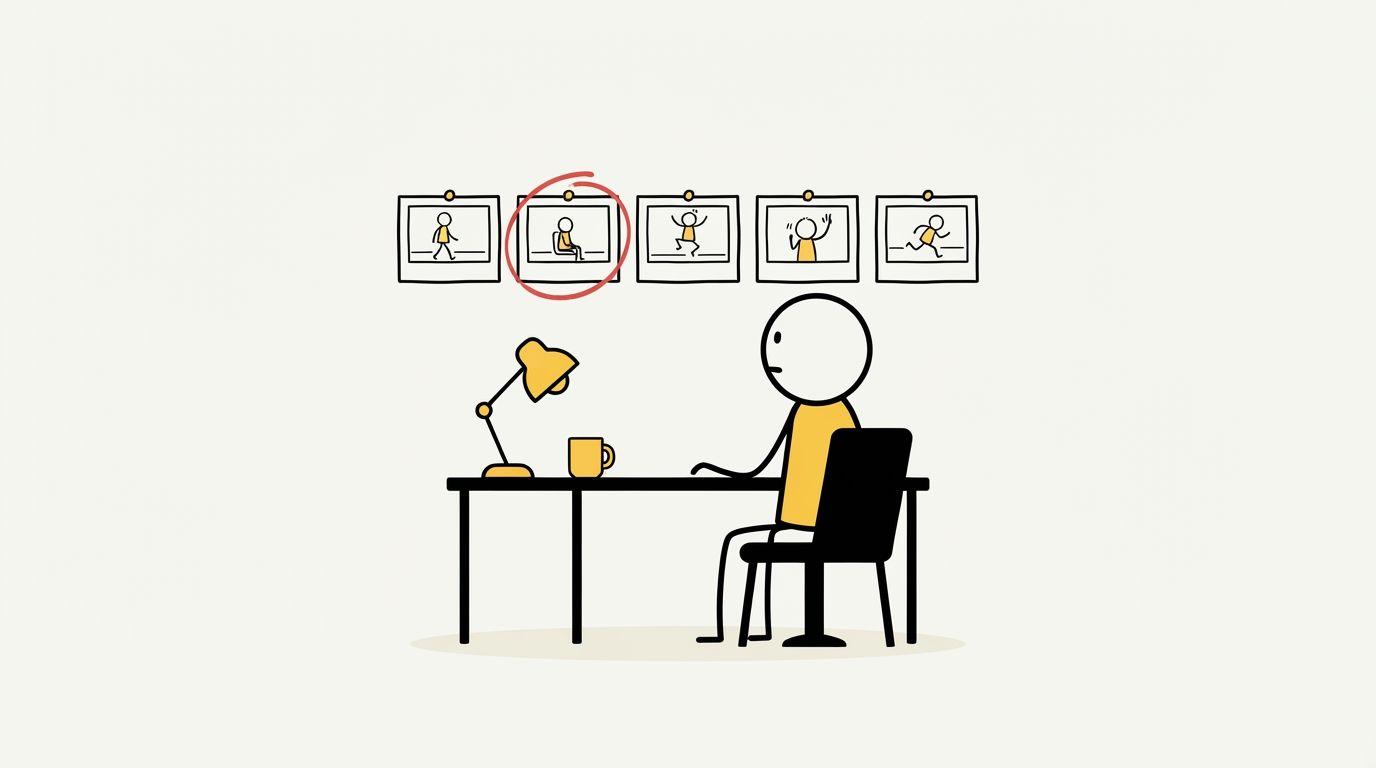
Ten minutes per episode is enough for most of them. Start with the facts: AI scripts sometimes get a date or a number wrong, so check the two or three claims the episode rests on. Then look for the scene that misreads its sentence. There are usually one or two per video (a character facing the wrong way, an object the line never mentioned), and regenerating them is quicker than explaining them in the comments. Last, read the title against the first 30 seconds. They should promise the same thing.
At twice a day, that’s 20 minutes of checking every single day, with a few hours’ notice each time. Most people stop doing it within a month, which is why fast schedules tend to end up unreviewed.
Pick a frequency you can actually check
Start weekly. A week between preparation and posting means you can review episodes whenever you have time, and a weekly horizontal video is what earns the watch hours the Partner Program asks for. Shorts feed views don’t count toward watch hours.
Pick a frequency you can actually check
Two series can post to the same channel. Give the Shorts series topics close to the main one’s, so a viewer who likes a Short finds a longer video on the same subject.
Move faster only when two things are true: the weekly episodes rarely need fixes, and you have more good topics than slots. Raising the frequency because posting is cheap is how channels end up as the “minimal variation” example in YouTube’s policy.
Use Private as a review gate
If you’d rather approve every video before anyone sees it, set the series’ YouTube privacy to Private. Each episode still renders and uploads on schedule, but it lands in YouTube Studio as a private video. You watch it there and switch it to public, or schedule it, when you’re happy.
The trade-off is that publishing becomes a manual step again. It’s a good setting for the first month, while you learn what the AI gets wrong in your niche. Once the episodes stop surprising you, switch the series to Public and go back to checking in the review window.
Check the numbers once a week
Automation doesn’t read analytics. Once a week, open YouTube Studio and look at two things for the newest episodes: average view duration and the audience retention graph. A steep drop in the first 30 seconds means the title promised something the opening didn’t deliver. A slow slide in the middle usually means a stretch where the script repeats itself.
Then compare topics. When one kind of episode holds viewers longer, write the next series’ topic list around it. That loop (topics in, retention out, better topics in) is the part of stick figure YouTube automation that you can’t hand off, and it’s the part that makes the channel worth subscribing to. The broader guide to automating a YouTube channel covers the same loop for other faceless formats.
To see what a series would make for your niche, put one topic into the free Stick Figure Video Generator and read the script it writes before you commit to a schedule.
FAQ
Is stick figure YouTube automation allowed?
Yes. YouTube allows automated and AI-assisted videos and lists using AI to visualize a character and story you invented as acceptable. What it won’t monetize is repetitive or templated content with little variation between videos, so each episode needs its own story or question.
Can an automated stick figure channel get monetized?
It can, if it meets the Partner Program thresholds and passes a review of the whole channel. From February 1, 2027, new channels need 1,000 subscribers plus 8,000 watch hours in a year or 20 million Shorts views in 90 days.
How often should an automated stickman channel post?
Once a week for horizontal videos, plus a Short every two or three days, is a pace you can review. Daily or twice-daily posting leaves hours, not days, to check each episode before it goes live.
Do AI stick figure videos need an AI disclosure on YouTube?
No. YouTube asks for disclosure on realistic content, like a real person saying something they didn’t. Stick figure animation is clearly unrealistic and exempt.
Can I check each video before it’s posted?
Yes. A ShortsCrafter series prepares each episode ahead of its posting time, from about 10 hours ahead for twice-daily posting to about a week ahead for weekly. You can also post episodes as private and make them public yourself.
What happens when a series runs out of topics or credits?
With a custom topic list, the series finishes after the last topic. If credits run out, it pauses; add credits and choose Resume series to continue.